
Widgets in incident mode
The FireServiceRota dashboard is the essential information point for a crew during incidents. It's customizable with various widgets that display crucial real-time information. Below, we'll show each widget with a brief explanation.
Seat Allocations
This widget displays the seat allocations. For a detailed explanation of how this is determined, we have a separate article in the FAQ section.

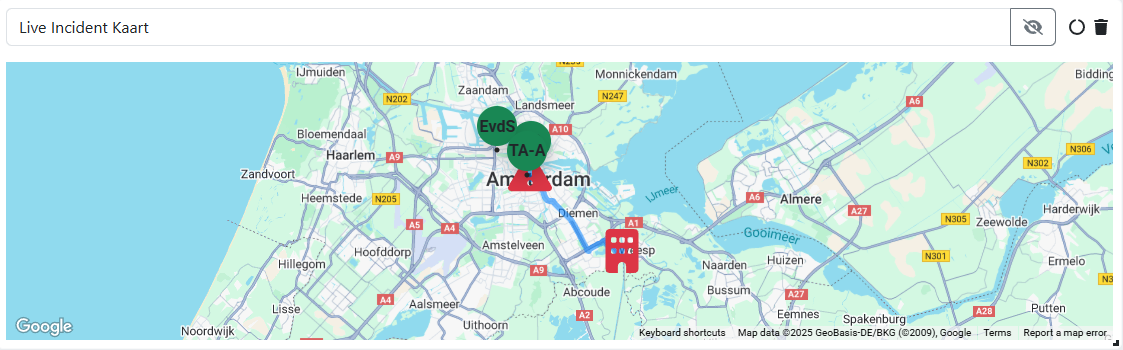
Live Incident Map
The Live Incident Map shows you the route from the station to the incident. The route is determined using Google Maps, meaning it doesn't take into account bus-/ or bike lanes that aren't included in navigation. However, the map is very useful for quickly getting an idea of the incident's location.
If your region is connected to the IHM Integration, you'll see the exact location of the incident, such as a house number or GPS coordinates. If the location of the incident changes, it will automatically be updated on the map.
Crew Confirmations
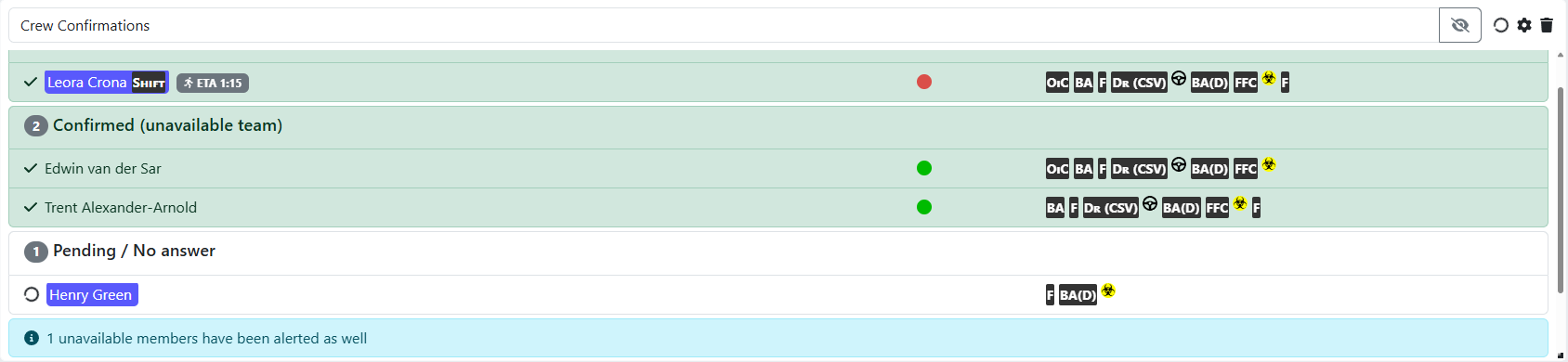
The Crew Confirmations widget gives you an instant overview of who was available, on call, confirmed or declined attendance at the time of an incident.
Below, you can see what the different colors and symbols mean:
- Name in white: User alerted, but has not yet received an attendance confirmation.
- Green area with a green dot: The user was on standby at the time of the alert and has confirmed attendance.
- Green name with a red dot: The user was not on standby at the time of the alert but has confirmed attendance.
- Red area: The user has declined attendance.
- Blue name: This person is currently on duty.
Incident Message
The Incident Message widget shows important information about an alert: the priority, the alert text, the address, and the elapsed time since the alert.
Priority and address: The priority is based on the pager notification message or the IHM integration. If there is a IHM integration, you will also see the exact house number in the alert.
Elapsed Time: The clock indicates how long an incident has been open. An incident automatically disappears from the dashboard after the set time. You can adjust this time in the post settings.
Spoken Alerts: You can also have the alert spoken. This is useful if you want to use the dashboard as a station alert system. This can be enabled/disabled in the widget settings.

Incident Crewing Warnings
The Incident Crewing Warnings widget provides a real-time overview of crewing during an incident. The widget shows whether a specific function is fully staffed or understaffed.
This overview differs from other widgets like Seat Allocations because it also includes real-time attendance confirmations in the calculation. This allows you to immediately see whether staffing is sufficient based on who is on the way.
The colors in the widget have the following meanings:
Green: Sufficient staffing.
Yellow: Close to sufficient staffing.
Orange: Staffing is fully staffed.
Red: Insufficient staffing.

Radio Channels
This widget is specifically for stations integrated with mobilisation software. The incident channel is sent via the broker and displayed enlarged on the monitor. This allows the commander or driver to see at a glance which channel to switch to.

Incident Notes
The notepad rules widget displays the incident notes. To use this widget, your region must be integrated with mobilisation software.

StreetView
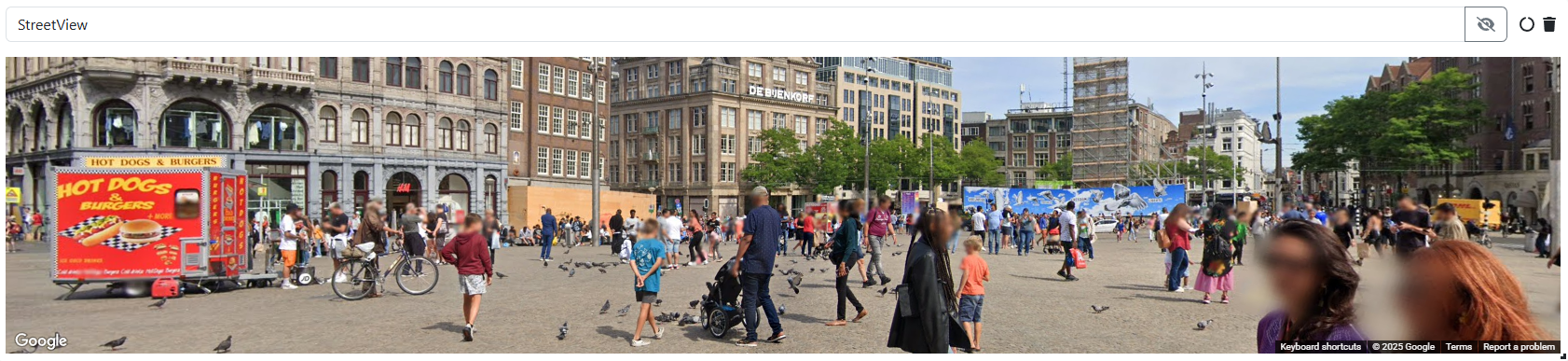
The StreetView widget shows an image of the location of a incident. The display is determined by the address and rotated to the exact coordinates. To use this widget optimally, an integration with mobilisation software is mandatory.
This widget provides a direct view of the incident location. This helps the commander assess the situation and can assist the driver in determining the best route. Please note that some images may be blurry if a resident has indicated they do not want to be visible in Street View.
Active Incident List
The Active Incident List widget shows all open incidents and their staffing status. You can use this widget at the regional, cluster, or station level for a quick overview of all open incidents. This is especially useful for a control room to see if enough staff have confirmed their attendance.
The color of an incident indicates its status:
White: The incident is still waiting for sufficient attendance confirmations. This color is visible for a maximum of one minute. If there are still insufficient confirmations after that, the incident turns red.
Green: Enough people have confirmed attendance.
Red: After one minute, not enough people have responded, indicating understaffing.
