Create a activity report
In FireServiceRota, activity reports can be created. In these activity reports, the (partial) attendance of multiple users during a activity can be recorded simultaneously. We explain how to create an activity report in the steps below:
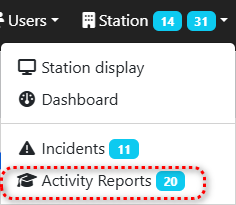
Step 1.) Go to the 'Activity Reports' page via the 'Station' menu.
Step 2.) Press the blue 'New Activity Report' button at the top to create a new report.
Step 3.) Enter the name/description in the title.
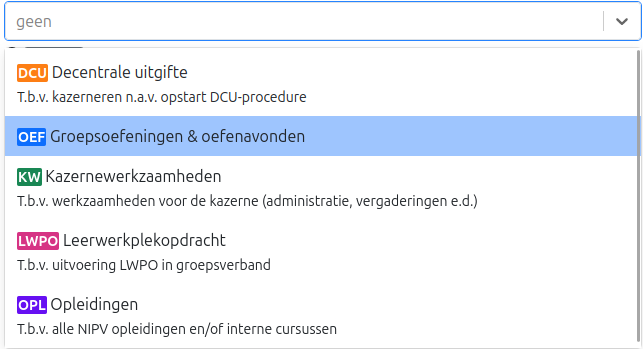
Step 4.) Choose, if applicable, a type and/or availability code to be assigned to the activity report. During the duration of the activity report, the availability code will be applied to each attendee in the schedule.
Step 5.) Enter the start and end time in the 'Period' fields.
Step 6.) Fill in any comments in the 'Details' field.
Step 7.) Press the green 'Create' button to generate the activity report.
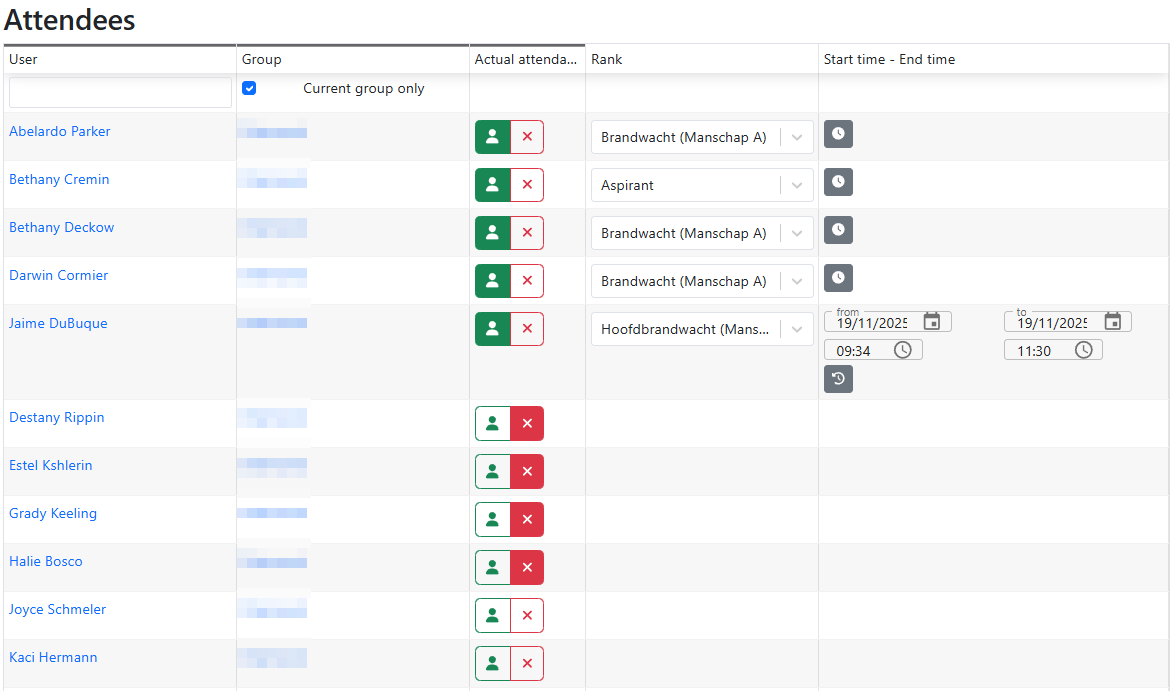
Step 8.) Choose for each person whether they were present (green) or absent (red). Optionally, enter a different start and end time by clicking on the user's row on the clock and then filling in the start and end time.
Step 9.) Press the green 'Save' button to save the changes to the activity report.
Step 10.) Press the green 'Submit for approval' button in the top right corner to submit the activity report.