
How to Create an Alerting Policy In FSR
You need to be signed in and also have the necessary user rights in the system to be able to add or edit alerting policies.
Click on the "Station" menu and click "Settings".
In the left control menu of the station settings click "Alerting Policies"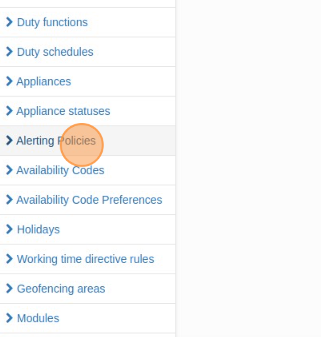
- Edit or review the existing policies by clicking the blue eye icon.
- Create a new policy by selecting the "new" button.
If you create a new policy you have to select what type of alerting policy you want:
- Demand Based Mobilization
- Team Cascading
- All Plannable Members, Regardless of Availability.
- All Available Members
Then you have to select the Understaffing Policy, this policy only works when "all available members" alerting is enabled. - This is used when you want to alert users regardless of availability or only available members in unavailable teams in case of an understaffing.
Click the "Response expiration time" field, if you select an expiration time, the input in seconds, remember this when adding a number of the expiration time.
Also, choose the maximum response time after the start of the incident. This is the time users are allowed to change their response.
REMEMBER: all time slots are registered in seconds.
The next step is to select On active incident handler, this can be:
- Users in active Incidents are alerted normally.
- Lower priority for users in active incidents.
- Never alert users in active incidents.
The "available within" is for the system to review those users who are available in the near future. You can select how many minutes or hours the user has to be unavailable for them to receive an alert. - This only works for the all available alerting policy.
Remember to capture if you want to add fairness to this alerting policy the system to inform them they are picked by fairness, we’re not warning them that the setting is enabled. - This only works for Swissphone pagers.
You will also have the opportunity to add appliance level degradation, remember this is only for Demand Based Movilization. This configuration will determine whether the system should realert based on the highest or the lowest multi level appliance.
Next select the auto acknowledge, it can be configured to:
- Never
- Stand by duty
- Available
- Available and unavailable teams
This is enabled when you do not want users to respond and want the system to automatically acknowledge depending their availability.
When users do not respond, you will disable the “response expiration enabled”.
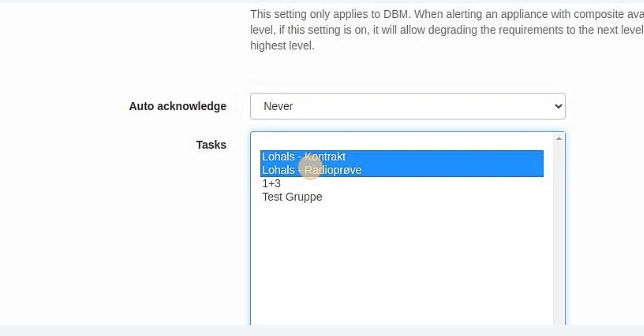
Choose the tasks (appliances) that will have this alerting policy. - You can select more than 1 by clicking the Ctrl key and selecting the tasks you want to have this policy.
Configure Skill deployment capacities (hold back important skills) if it is necessary.
Only add this if you need to keep any important crew member back from going to any deployment, this functionality is only used for Demand Based Movilization.
You can add the minimum number of this skill you need to keep in the station. The system will not alert the number of users you select unless they are the last resource to have a full crew.
Candidate inclusion rules are used when despite the crewing level of an appliance you want to always alert a specific skill. - You can add for the system to alert them only when available or alert them regardless their availability.
Candidate exclusion rules are mostly used to differentiate users that only need to receive incidents when they are available. - This can be used to keep users with special skills for special appliances.
The last step is to add any Candidate penalty rules if needed, these are related to availability codes. - When a user has the code you have selected they will not be alerted unless they are the last resource for the appliance to be complete.
At last click the save button and changes will be automatically saved.
NOTE: it is very important to be sure of the changes you want to make and for what appliances you are making changes. All policies can be edited or erased if needed.
Alerting policies have an audit log where you can review where you will be able to review who has changed or added any of the rules.
Tip! If there still questions please do not hesitate to reach out to us via helpdesk.