
Creating a poll
Polls can be used for various purposes, such as organizing a poll or scheduling a drill. You can easily let users indicate whether they are available for a drill. FireServiceRota distinguishes two types of polls: in a message (for a specific group) or in a notification (for an entire post). To create a poll, follow the steps below:
Step 1.) Go to the 'Poll' page via the 'Station' menu.
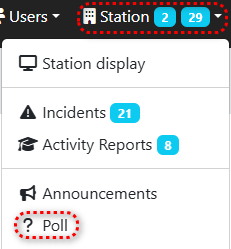
Step 2.) Click one of the two blue buttons, depending on your choice. From here, the manual will also be divided based on your choice.

Poll in a announcement
A poll in a announcement is visible for the entire post. To create a poll in a announcement, follow the steps below:
Step 1.) Enter the subject of the notification in the 'Subject' field.
Step 2.) Optionally, select a date from and until which the notification should be visible.

Step 3.) Add text to the notification.
Step 4.) Click the 'Add new poll' button to add a poll to the notification.
Step 5.) Add answers by clicking the "Add extra option" button.
Step 6.) Click the green "Save" button in the bottom right corner to save the poll and announcement.

Poll in a Message
Sometimes it may be desirable to send a poll only to a select group of users. This could be for an drill that only applies to a select group of users (e.g., the commanders). To create a poll in a message, follow the steps below:
Step 1.) Enter the recipients of the message in the "Recipients" field.
Step 2.) Select the message priority.

Step 3.) Enter a message text.
Step 4.) Click the "Add new poll" button to add a poll.
Step 5.) Add answers by clicking the "Add extra option" button.
Step 6.) Click the green "Send" button in the bottom right corner to save the poll and announcement.
